Who Should Have Admin Permissions in a Discord Server: Five Access Levels, Three Questions
Sort every person and bot in your server into five access levels, list every webhook, cut each one down with three questions, and repeat the review every quarter.

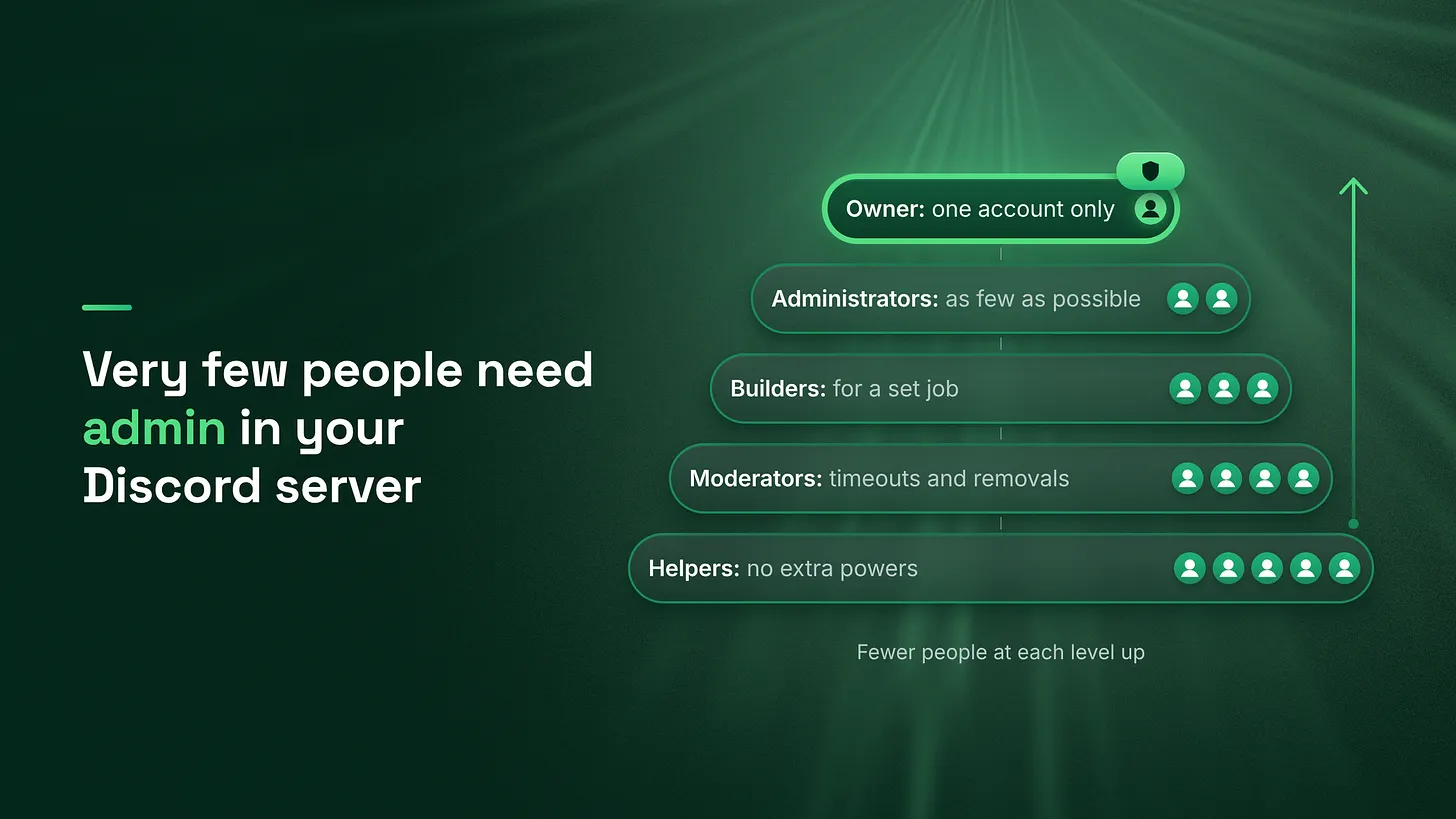
Who should have admin permissions in a Discord server? As few accounts as you can run it with. Sort every person and bot into five access levels, list every webhook, then keep, narrow or remove each one using three questions. Repeat the review every quarter and after any staff or bot change.
Who needs Administrator
Administrator belongs on as few accounts as you can run the server with. For most servers I set that at the owner plus one or two people who share full responsibility for it, and everyone else gets the narrowest role that covers the work they do every week. The reason is what the permission does. According to Discord's help center (2025), the Administrator permission "grants all permissions and bypasses all channel restrictions". Two terms, explained once:
- A permission is a single switch that lets an account do one thing, such as remove a message.
- A role is a named bundle of those switches that you attach to members. Administrator turns on all the other switches, and it opens every private channel, including the ones you built for staff or leadership. The permission usually gets handed out to finish a job quickly. A contractor needed to build channels. A bot asked for it during setup. A moderator needed one setting changed. The job ends and the access stays. After enough of those, you can no longer say who is able to delete channels, change roles or post in your announcement channel, and that uncertainty is a large part of why opening your own server feels uncomfortable.
Most people who hold Administrator only ever needed one or two narrower permissions.
I served as Head Discord Moderator for Google Developers, and this is the access model I set up first in any server.
The five access levels
Every person and every bot in the server fits one of these levels. The table runs from the most access to the least.
| Level | Who holds it | What it can do | How long it lasts |
|---|---|---|---|
| Owner | One account | Everything, including deleting the server | Permanent |
| Administrator | The smallest number you can run with | Every permission at once, and every private channel | Until a review says otherwise |
| Builder | Whoever is building right now | Manage Channels, Manage Roles, Manage Webhooks | For a stated job, removed on a stated date |
| Moderator | People who handle member behaviour | Timeouts and message removal. Kick or ban only for those who need it | While they are active in that job |
| Helper | Staff and volunteers who answer questions | Nothing beyond an ordinary member | While they are on the team |
Owner. According to Discord's help center (2023), only the server owner can delete a server, whatever permissions others hold. Keep ownership on one account and switch on two-factor authentication for it. Two-factor authentication is a second login step, usually a code from an app on your phone.
Administrator. This level is for someone who carries full responsibility for the server day to day and whose weekly work touches nearly every setting. If you can name one setting they never touch, a lower level probably covers them.
Builder. A Builder holds the three permissions that construction work needs: Manage Channels, Manage Roles and Manage Webhooks. Write the end date in your register on the day you grant the role. Position matters here. According to Discord's help center (2025), a member with Manage Roles can create and change only the roles positioned below their own highest role. Place the Builder role under the Administrator role in the role list, and a Builder cannot hand anyone a role above their own.
Moderator. A timeout temporarily stops a member from posting. Timeouts and message removal cover most of a moderator's week, and both are easy to undo. Removing a member, by kick or ban, is heavier, so only the moderators who handle those cases get that.
Helper. A named role with every extra permission switched off. Its only job is to show members who is staff, and that is all most people who answer questions need.
The keep, narrow or remove rule
Ask three questions about every holder above Helper. Start with Administrator, then Builder, then Moderator.
- Did they use this power recently? The audit log is the evidence. According to Discord's developer documentation (2026), the audit log is a built-in record of administrative actions, its entries are kept for 45 days, and viewing it needs the
View Audit Logpermission. It sits in Server Settings. If a holder's name shows no action in those 45 days that needed their level, they did not use it. The log is shorter than a quarter, so ask the holder about the earlier weeks. - Could a narrower role do the same weekly work? Write down what the person does in a normal week and match it to the lowest level that covers it. A need that comes up once a quarter does not count, because someone at that level can do it for them or you can grant a Builder role for the day.
- Would you be comfortable if this account were taken over tonight? A staff account can be taken over, for example through a leaked password. Picture the worst thing an intruder could do with this account's access. If the answer is "delete every channel", the access needs to be smaller. The answers lead to one of three decisions.
- Keep when the power was used, no lower level covers the weekly work, and the third answer is yes.
- Narrow when the power was used and a lower level would have covered it. Move the holder down to that level.
- Remove when the power was not used, the job has finished, or the person has left the team. When the first two answers point to keep and the third answer is no, narrow anyway and give the wider access back for dated jobs. Tell each person before their role changes.
Hi [name]. I am tidying up access in the server this week.
Your role is changing from [old level] to [new level].
It still covers [the work you do each week].
If you find something you can no longer do, message me and
I will sort it out the same day.
Bots and apps get the same questions
A bot is an automated account that does a job in the server, such as welcoming new members. It takes the level that matches what its role can do. A bot that asked for Administrator on the day it was added still holds it today unless someone changed it.
- See what is installed. According to Discord's help center (2024), the Integrations page in Server Settings lists everything added to the server, including apps, bots and webhooks, along with when each was added and who added it. Any entry nobody can name a purpose for is a candidate for removal.
- Question any bot holding Administrator. Write the bot's job in one sentence. Then give its role only the permissions that sentence needs. A bot that welcomes new members needs to post in one channel. A bot that hands out roles needs
Manage Roles. - Limit who can use its commands. According to Discord's help center (2024), you can limit an app's commands to chosen roles, members and channels from that same page. A moderation command belongs to the Moderator role and the staff channels.
- Place its role deliberately. Treat a bot's role the way you treat a Builder's. Put it just above the roles it has to hand out and below every staff role, so the bot can never grant a staff role.
Webhooks work like keys
According to Discord's Safety Center (2022), a webhook is a URL that posts messages into one channel. Posting through it needs no login and no bot, so anyone holding the URL can post, and deleting the webhook ends that access. A URL pasted into an outside tool or a shared document keeps working for everyone who can still open it, including people who have left. A webhook sits outside the five levels, so it gets its own line in the register. List every webhook from the Integrations page with the channel it posts into, the tool that uses it, and the person responsible for it. Delete any webhook nobody can name a purpose for. If one is still needed and its URL has been shared widely, delete it, create a new one, and update the tool.
What every member can do by default
Every member holds a base role, shown as @everyone in the role list. Whatever is switched on there is granted to every account that joins, so it counts as access too. Check three things.
- Mentioning everyone. One message can notify the whole server. I switch this off on the base role and keep it for Moderator and above.
- Creating invites. Leave it on if you want members to bring people in. Switch it off if every new member should arrive through links your team controls.
- Creating threads. A thread is a side conversation attached to a channel. It suits discussion channels and does not suit channels meant only for reading.
Turn on the two-factor requirement. According to Discord's Safety Center (2022), the server owner can require that anyone using moderation powers has two-factor authentication on their account, and the owner needs it on their own account first. The setting is in Server Settings. Give staff a date a few days ahead so nobody is caught without it in the middle of a shift.
Prove each change worked
A role that looks right in settings can still allow the wrong thing. Test every change the same day. Create a spare Discord account, join the server with it, give it the narrowed role, and work through this list. ✅ The spare account cannot do the blocked action, such as deleting a test channel or mentioning everyone ✅ The spare account can still do the weekly work the role covers ✅ Each narrowed bot still does its main job when triggered once ✅ The change appears in the audit log ✅ The register shows the new level and the date
The access register
The register is a one-page table kept outside Discord, in a spreadsheet or document your leadership team can open. The audit log only holds 45 days, and you should be able to read this list without opening the server. ACCESS REGISTER
| Who | Level | Why | Granted on | Review on |
|---|---|---|---|---|
| [Your account] | Owner | Owns the server | [date] | [next quarter] |
| [Name] | Administrator | Runs the server day to day | [date] | [next quarter] |
| [Name] | Builder | Rebuilding support channels | [date] | [end date of job] |
| [Bot name] | Builder, bot | Assigns member roles | [date] | [next quarter] |
| [Webhook name] | Webhook | Posts release notes | [date] | [next quarter] |
One line per holder above Helper, plus one line per bot and webhook.
The quarterly review and its triggers
Put the review in your calendar once a quarter. Once the register exists, I budget 30 minutes for it.
- Open the register and the Integrations page side by side.
- Check that every holder in the server has a line, and every line still has a holder.
- Ask the three questions for each line above Helper.
- Apply keep, narrow or remove, and send the message before each change.
- Test with the spare account and update the register. Run the same check on a single line, the same day, whenever one of these happens:
- Someone leaves the team
- A contractor finishes their job
- A bot is added
- A new role is created
- Anything odd happens, such as a channel disappearing or a message nobody admits to posting
Access is one part of role and channel architecture
Access levels are one piece of role and channel architecture, which covers which roles exist, what each one can see, and how channels are grouped. That architecture sits beside moderation load, escalation paths, automation coverage and documentation. Everything above can be done this week with the settings you already have. The other layers decide how much work reaches the people who hold these roles. A short list of who can do what makes a server easier to open than any amount of reassurance. More at danieljeong.org.