How to Give Beta Testers Access in Discord: Match the Method to Your Tester List Size
Lock the beta channel to one role, grant that role from your approved list by hand, by capped invite link or through your product, and plan its removal on day one.

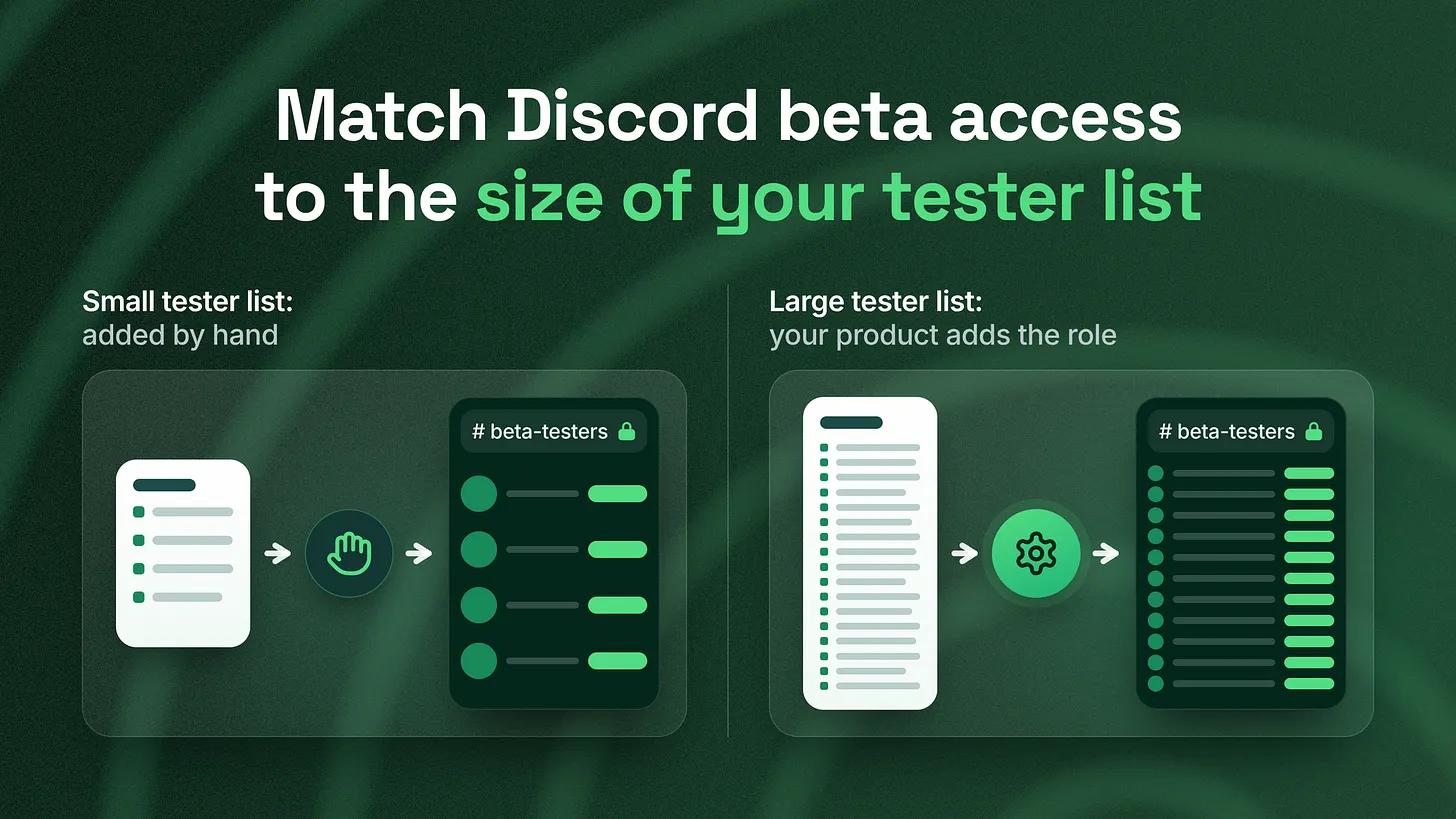
How to give beta testers access in Discord: lock one private channel to a single role and grant that role only from your approved tester list. Add it by hand for a handful of testers, send one capped role invite link per group for a few hundred, and let your product grant it beyond that. Plan the removal on day one, because roles given by an invite stay after the link expires.
The short answer
Put the beta in a private channel that only one role can see, then hand that role out from the tester list your product team already keeps. Members never get to choose it for themselves.
The channel part takes a few minutes. In the channel's permission settings, deny View Channel to @everyone and allow it for a role called something plain like beta-tester. Discord applies channel permissions on top of server permissions, so this one setting hides the channel from everyone without that role. Discord's Help Center explains the override in its 2026 permissions FAQ.
The harder part is the second half: who gets the role, and who takes it away. That depends on how many testers you have, and the rest of this piece maps it out size by size. Before the map, one common setup has to come out first.
Why a self-picked beta role is a public role
The most common way a beta channel goes wrong is an onboarding question. Somebody adds "Do you want to test the beta?" to the join flow, ties the yes answer to the beta-tester role, and considers the job done.
Discord's Community Onboarding was built for exactly this kind of self-selection. According to Discord's Help Center article on Community Onboarding, as it reads in 2026, each answer can assign roles, channels or both, and members can "swap roles or channels at any time" from the Channels & Roles tab. That is a good feature for interests and topics. For a beta it means the channel is open to anyone who taps yes.
Three things follow, and none of them are good for a product team:
- People who were never approved see unreleased features and screenshots, and any of them can post those screenshots elsewhere.
- People who cannot run the build post feedback on it anyway, often as "where do I download this?", and the questions bury the real reports.
- People who picked the role and then find they have no access in the product feel shut out, which is worse than never seeing the channel at all.
A role a member can give themselves is a public role, whatever it is called.
The interest behind that onboarding question is still worth having. Point the yes answer at a separate beta-waitlist role and a waitlist channel instead. Now the product team has a list of people who raised their hand, and it picks testers from that list. The waitlist is open. The beta is not.
Two lists that have to agree
Here is the part that trips up product teams. Your product decides who can actually use the beta build. Discord decides who can see the beta channel. These are two separate systems, and Discord has no idea who your product approved. So every method below is a way of keeping two lists in agreement:
| Question | Where the answer lives |
|---|---|
| Who can use the beta build? | Your product, usually on the user's account |
| Who can see the beta channel? | Discord, through the beta-tester role |
| Who added this person, and when? | Wherever you log it, or nowhere if you do not |
| Who removes them when the beta ends? | Nobody, unless you decide it up front |
The last two rows are where most beta channels quietly fail. Getting people in is the visible job. Keeping the record and getting people out is the invisible one.
A handful of testers: add the role by hand
For a small group, manual assignment is the right tool. My own working default is to stay manual up to roughly 25 testers. That number is a rule of thumb from my own practice, not a published standard. How to run it well:
- Name one owner. One person adds the role, and everyone else sends requests to that person.
- Ask each approved tester for their Discord username at the moment they are approved in the product, so the two lists are built together.
- Add the role and log it in a simple sheet: username, date added, date the beta ends.
- Post a short welcome in the beta channel tagging the new tester, so they know the access worked. What breaks first is the owner. Requests queue up when that person is busy or away, and testers who were approved in the product sit outside the channel for days. Removals break next, because nobody remembers to take the role back from someone who dropped out. The sign you have outgrown this stage: approved testers are waiting more than a day for access, or the owner cannot say from memory who is in.
A few hundred testers: one role invite link per group
This is the stage that changed recently. Discord invites can now hand out roles. Discord's developer documentation on Community Invites, as published in 2026, says that "when someone accepts a community invite, Discord automatically assigns one or more roles to them", and that people who are already in the server still receive the roles. Discord announced the feature for developers in its February 2026 developer newsletter. That means you can send each approved group one link, and the link does the role assignment for you. Creating one takes a minute:
1. Right-click the beta channel and choose Invite To Channel
   (or open the server menu and choose Invite To Server).
2. Click Edit invite link.
3. Under Roles (Optional), select beta-tester.
4. Set Max number of uses to the size of this group.
5. Set an expiry that matches when you expect this group to join.
6. Click Generate a New Link and send it only to the approved group.
You need the Create Instant Invite, Manage Server and Manage Roles permissions to do this, and you can only hand out roles that sit below your own highest role. Both rules come from the same documentation page.
What breaks at this size is the link itself. A link can be forwarded. Anyone holding it gets the role until the uses run out, which is why the use cap should equal the group size and never "No limit". If the uses run out before everyone in the group has joined, somebody you did not approve probably used one.
The second break is quieter. The same documentation states that "roles assigned through an invite persist even after the invite expires or is deleted." Expiring the link stops new people. It does nothing to the people already in. Removal stays a separate job.
Two habits keep this stage clean. Issue one link per group, so a leak only affects one group and you know which one. Once a week, compare the number of members holding beta-tester against the number of people approved in the product. If Discord's number is higher, you have a leak to trace.
Past a few hundred, or a list that changes weekly: let the product grant the role
Once the tester list is large or changes often, any human step becomes the bottleneck. The fix is to let your product, which already knows who is approved, tell Discord directly. There are two ways to do it, and both need a developer. Targeted invites. Discord's 2026 Using Community Invites tutorial describes a parameter that "accepts a CSV file containing Discord user IDs", and states that "only users in that list can see and accept the invite." Pair it with the role setting and you get a link that only approved testers can use, so forwarding stops being a risk. This is an API feature, so it is built by your engineering team rather than clicked together in the app. It also means your product needs each tester's Discord user ID, which is a field you have to collect. Linked roles. Here the role requires a fact your app reports about the user. Discord's 2026 developer documentation on role connection metadata explains that apps can define their own metadata, such as a true or false value, and server admins then require that value for a role. An app can define a maximum of five metadata records. The tester connects their product account to Discord once, your app reports that they are in the beta, and the role follows. What breaks at this stage is mostly adoption and upkeep. Some testers will never link their account, so keep a fallback path such as a small manual queue. And before you rely on linked roles for removal, check with your developer how and when your app refreshes that data, because the metadata page in Discord's 2026 documentation describes how apps update the data without saying when roles are re-checked. Plan a removal step anyway.
The whole map on one page
| Tester list size | How the role is granted | What breaks first | Sign you have outgrown it |
|---|---|---|---|
| A handful | One named owner adds it by hand and logs it | The owner becomes a queue | Approved testers wait more than a day |
| A few hundred | One role invite link per group, with a use cap and expiry | Forwarded links, and roles that stay after expiry | The role count in Discord drifts above the approved count |
| Larger, or changing weekly | Your product grants it through targeted invites or linked roles | Testers who never connect, and unclear removal timing | Rarely outgrown; the work moves to upkeep |
The size thresholds in that table are my working defaults. The behaviour in the middle columns comes from Discord's own documentation linked above.
The exit is part of the setup
Roles do not leave by themselves at any size. Decide the exit before the first tester joins, and post it in the channel so testers know the beta has an end. A clean exit has four steps:
- Post the end date in the channel's pinned message on day one.
- A week before the end, post a reminder and point testers to where they can keep talking once the channel closes.
- On the end date, remove
beta-testerfrom everyone. At small sizes the owner does it from the role's member list. At larger sizes, have your developer or a bot do it in one pass. - Set the channel to read only for a short period so testers can find their old threads, then archive it.
If you want to recognise the people who helped, give them a separate
beta-alumnirole with no special access. It keeps the thank you without keeping the door open.
What goes inside the beta channel
Access is the hard part, and it is the part this piece is about, but a beta channel that people can reach and nobody answers is still a failure. Keep the inside simple:
- A pinned post that says what is in the current build, what is known to be broken, and when the beta ends.
- One place for reports. A forum channel with a tag for bugs and a tag for ideas keeps each report in its own thread.
- One named person from the product team who replies. My own default is a reply on every report within two working days, which again is my practice rather than a published figure.
Where beta access sits in the bigger picture
Beta access is one door in what I think of as the server's access architecture: the role design, the channel permissions, the onboarding questions, the paths for escalating a problem to staff, and the offboarding that takes access away when it should end. Each of those layers has the same two lists problem as the beta, because Discord only knows what you tell it. This piece covers one door completely. The others work the same way and are usually built one at a time, whenever something leaks. The first step takes five minutes. Make a fresh Discord account, join your own server, open Channels & Roles, and see whether the beta role is on offer. If it is, move that answer to a waitlist role today. *A beta tells your earliest users how you will treat them once the product is public. Letting the right people in and walking them out cleanly says more than the build itself. *danieljeong.org