How to Brand a Discord Server? Four Places Members See, From the Invite to Every Bot Message
Many teams stop at the logo and banner. This four part kit covers the first channel, every bot and webhook that posts, and the staff list, so the whole server reads as one company.

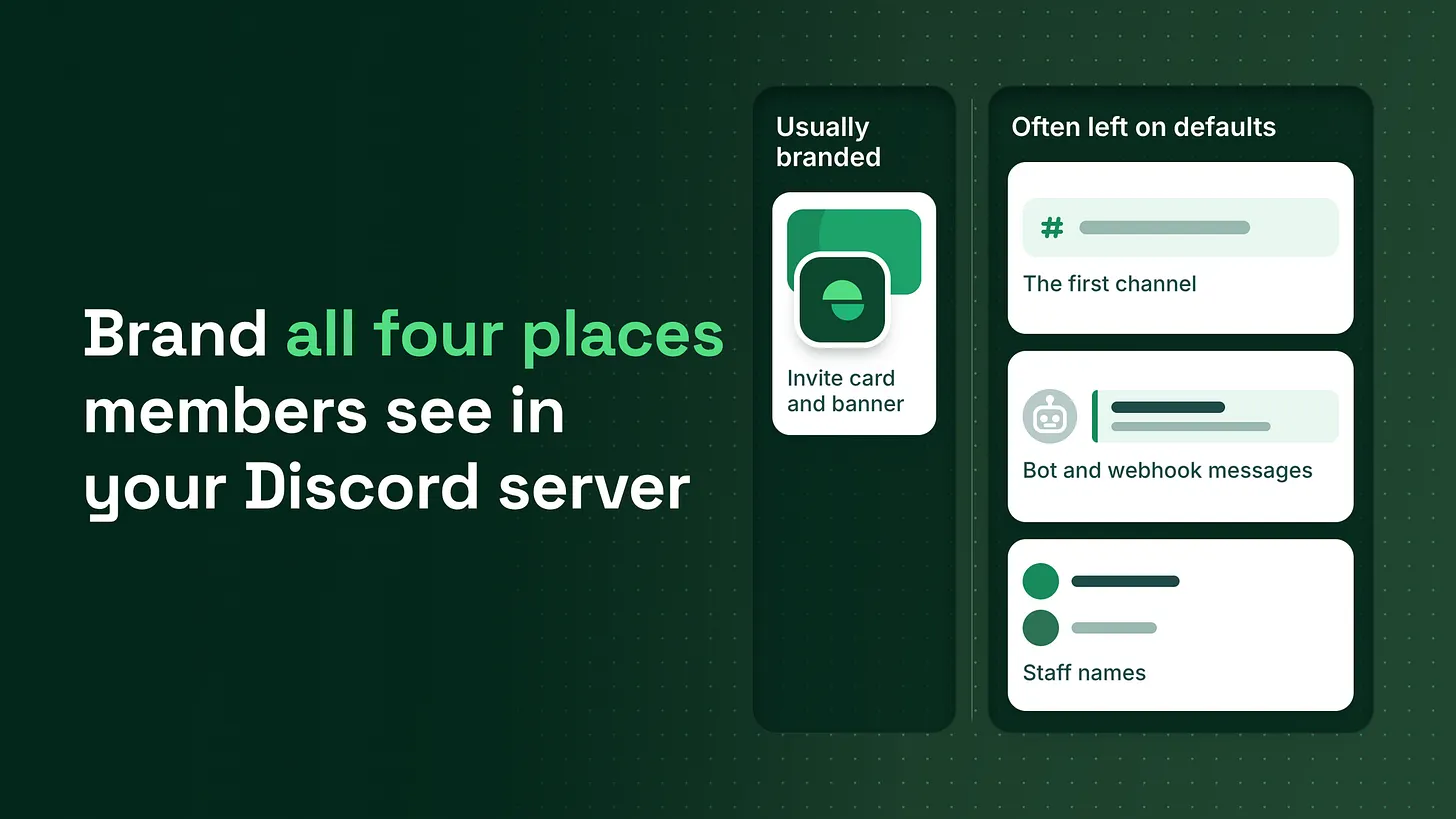
How to brand a Discord server: work through the four places members see, in the order they see them. That means the invite and banner, the first channel, every bot and webhook message, and the staff list. Many teams stop after the logo. The places they skip cost nothing to fix.
Picture a new member's first minute in your server. They click the invite and the card shows your logo. The server opens on your banner. Then the welcome message arrives, and it comes from a bot with a cartoon avatar and a name nobody at your company chose, inside a grey box that matches nothing on your website. That member now has a small, fair question: who actually runs this place? The logo says your company. The voice greeting them says somebody else. Members do not file a complaint about it. They just trust the room a little less, and the next message from that bot gets read a little less carefully.
The short answer
Brand the four places a member sees, in the order they see them. Each place has its own settings, and Server Boosts only add extras, such as the invite background, the banner and role icons.
| Place | What the member sees | What you set |
|---|---|---|
| 1. The front door | Invite card, server icon, server banner | Logo, invite background, banner image |
| 2. The first channel | The welcome panel at the top of the first channel | One sentence on what the company makes, a branded header image, link buttons |
| 3. Every bot and webhook | Welcome messages, ticket replies, announcements, alerts | Company name, logo as avatar, one embed colour |
| 4. The staff list | Staff names in chat and in the member list | One role colour, one nickname format, role icons if you have the boosts |
Many teams do place one and stop. Place three is the easiest one to miss, and it is also the place a member sees most, because in a lot of servers the welcome, the ticket reply and the announcement all arrive from a bot rather than a person.
Why the logo alone does not carry the brand
People in a server read who is speaking before they read what was said. Every message carries a name and an avatar on its left edge, and that pair answers the question "is this official?" faster than any words in the message can. A logo on the server icon tells a member whose server they joined. It says nothing about whether the account talking to them right now belongs to that company. When the welcome bot, the ticket bot and the announcement webhook each show a different default name and picture, the server looks like a building with one company sign out front and a different stranger behind every desk. This matters to a brand team for a practical reason as well as an aesthetic one. Impersonation scams in Discord usually start by copying a name and an avatar. When your official accounts all look the same, a member has a reference to compare against. When they all look different, a fake account has nothing to stand out from.
Place one: the front door
This is the part many teams already handle: the server icon, the invite card a person sees before joining, and the banner at the top of the channel list. It is also the only place where the options depend on Server Boosts, which are paid upgrades that members or the company apply to a server. Discord's Help Center article on Server Boosting (updated 2026) lists exactly what unlocks at each level:
| Boost level | Boosts needed | Branding perks it unlocks |
|---|---|---|
| Level 1 | 2 | Custom invite background, animated server icon |
| Level 2 | 7 | Static server banner, custom role icons |
| Level 3 | 14 | Animated server banner, custom invite link |
A server with no boosts still gets a static icon, so the logo carries the front door on its own. My advice, and it is my own view rather than anything Discord says, is to fix places two to four before spending anything on boosts. Those three places are free on every server, and members spend far more time looking at them than at the invite card they saw once. When you do set the front door, make the invite background and the banner from the same artwork as the first channel's header image. A member sees all three inside their first minute, and matching them is what makes the server read as one designed thing.
Place two: the first channel
The first channel is the first thing a member reads, and it should open by saying what the company makes in one plain sentence. The gap to watch for here is a welcome panel that greets the member warmly and never says what the product is. Brand this channel with the same tools you use on your website:
- A header image at the top of the welcome message, built from your brand artwork so it matches the invite background and banner.
- One embed colour. Every embed in Discord has a coloured bar on its left edge. Use your primary brand colour there and nowhere else changes it.
- Link buttons below the welcome text that point to the website, the docs and the support channel, so the first channel works like a landing page.
- Your voice in the copy. If the website says "you" and keeps sentences short, the welcome message should too. The welcome panel is usually posted through a webhook, which leads straight to the place many teams skip.
Place three: every bot and webhook that posts
This is the largest part of the job and the cheapest. Start with an inventory, because teams often do not know how many automated accounts post in their server until they list them.
Step one: list every account that posts automatically. Scroll through the member list for accounts marked as apps or bots, then open Server Settings, then Integrations, to see every webhook. Write down each one and what it posts: welcomes, ticket replies, level ups, announcements, social feeds, alerts.
Step two: give each one the company's name. For a bot, the quickest fix is a server nickname. Discord's Help Center article on Server Nicknames (updated 2025) says a nickname customises a name inside one server, and that the Manage Nicknames permission "will allow a user to change other server members' nicknames within that server." Bots are server members, so an admin can rename any bot without touching its settings. Name them by job so members can tell them apart while still seeing the company: Acme Support, Acme Welcome, Acme Updates.
Step three: give each one the logo as its avatar. This depends on the type of account.
- Webhooks are the easiest. Each webhook has a default name and avatar you set under Integrations, and Discord's developer documentation (2026) also lets any single message override them through the
usernameandavatar_urlfields. Every webhook post can carry the company name and logo. - A bot you run yourself can set its own avatar per server. The same developer documentation (2026) lists a Modify Current Member endpoint that takes an
avatar, abannerand abiofor the bot inside one server, so the bot can wear your logo in your server and a different one elsewhere. - A third party bot is up to its developer. Check its dashboard for a per server name and avatar option. If it has none, the nickname still carries the company name, and that alone removes most of the confusion.
Step four: set one embed colour everywhere. Pick your primary brand colour and use it on every embed every bot sends. Embed builders and bot dashboards generally take the hex code. Discord's message documentation (2026) describes the embed
colorfield as a colour code stored as a whole number, so if anyone on your team writes raw JSON, give them both forms:
Brand colour (hex, for dashboards and embed builders): #3B5BDB
Brand colour (whole number, for raw embed JSON): 3890139
That colour code is an example. Convert your own once, put both versions in the brand sheet below, and nobody has to guess again.
A member should be able to cover the message text with their thumb and still know which company is speaking.
Place four: the staff list
Staff are the human half of the brand, and members look for them when something goes wrong. Three settings do most of the work:
- One role colour for staff. Role colours tint a person's name in chat and in the member list. Give the staff role your brand colour, or one accent colour from the brand palette, and keep other roles off it so the colour means "official."
- One nickname format. A format that works is
First name | Team, for exampleSam | Support, though any consistent format does the job. What matters is that every staff name follows the same pattern, so a copied name with a different pattern looks wrong at a glance. - Role icons, if you have Level 2. The Help Center article above lists custom role icons as a Level 2 perk at 7 boosts. A small logo mark beside staff names is a strong signal when it is available. Without it, the colour and the format carry the job. Leave staff profile pictures alone. People keep their own faces and avatars, and forcing a company picture onto every staff account makes them harder to tell apart, which works against the reason for branding them.
The one page brand sheet that stops it drifting
Branding in a server usually breaks the same way: somebody adds a new bot months later, sets it up in a hurry, and it posts with its default name and colour. The fix is a short sheet that whoever adds the next bot can follow. A template you can copy:
DISCORD BRAND SHEET

Logo files
  Square avatar (for bots, webhooks, server icon): [link]
  Header image (for the first channel and announcements): [link]

Colour
  Embed colour hex: [#xxxxxx]
  Embed colour whole number: [number]
  Staff role colour: [same as above or one accent]

Names
  Bots and webhooks: [Company] + [Job], e.g. Acme Support
  Staff nicknames: [First name] | [Team]

Every new bot, before it posts anything
  1. Set its server nickname to the naming rule
  2. Set its avatar to the square logo, if the bot allows it
  3. Set its embed colour to the hex above
  4. Post one test message in a staff channel and compare it to the others
Pin it in a staff channel and link it from wherever your team keeps its brand guidelines. A designer can own the file without ever touching a bot.
Checking it every few months
Settings drift. A bot updates and resets its colour, a webhook gets recreated without its avatar, a new moderator picks their own nickname style. A check every quarter is a sensible schedule, though not a rule. The check takes one sitting. Join your own server from a fresh account with no roles, then screenshot the invite card, the first channel, the last message from every bot and the staff section of the member list. Put the screenshots side by side. Anything that looks like it came from a different company gets fixed against the brand sheet.
Where this sits in the larger build
Branding is the visual layer that runs across a whole server build. Underneath it sit the onboarding sequence that takes a member from the invite to their first useful action, the role and channel architecture, the support routing that decides where questions go, the moderation setup, and the automation that posts on the company's behalf. Each of those layers produces something a member sees, and each one should look like it came from the same company. The four places in this piece are how you check that it does. A member decides who runs a server from the name beside each message, so give every voice in yours the same name. More at danieljeong.org.